shipcue docs
Set up shipcue in a Next.js app in about ten minutes. The handler is a plain (Request) => Response function, so it also runs in Hono, Remix, Bun, Deno and Cloudflare Workers.
0. Install shipcue
npm install shipcueUntil the first npm release is out, install the prebuilt release from GitHub. Nothing builds on install, so it works with npm, pnpm and Vercel:
pnpm add https://github.com/cyu60/shipcue/releases/download/v0.5.2/shipcue-0.5.2.tgzshipcue has three entry points: shipcue (config and the task prompt), shipcue/server (the handler and the Postgres store) and shipcue/react (the button). The MCP server runs as npx shipcue-mcp.
1. Create the table
Run sql/schema.sql on your database. It creates one table, shipcue_reports, and an index that keeps the queue fast. It works on Supabase, InsForge, Neon, RDS and plain Postgres.
2. Mount the handler
In app/api/shipcue/[...path]/route.ts:
import { Pool } from 'pg';
import { createShipcueHandler, postgresStore } from 'shipcue/server';
import { resolveConfig } from 'shipcue';

const pool = new Pool({ connectionString: process.env.DATABASE_URL });

const handler = createShipcueHandler({
  store: postgresStore(pool),
  config: resolveConfig({ areas: [{ value: 'editor', label: 'Editor' }] }),
  getReporter: async (req) => (await getSession(req))?.email ?? null,
  requireReporter: true,
  agentToken: process.env.SHIPCUE_TOKEN,
  onReport: async (report) => { /* email the team, post to Slack */ },
});

export { handler as GET, handler as POST };
Screenshots are stored as small data URLs unless you pass saveScreenshot(file, key) to upload them to S3 or Supabase Storage. A failure inside onReport never fails the report.
Pass saveVideo(file, key) to let reporters attach a screen recording or video (WebM, MP4 or MOV, up to 40 MB) through POST /reports/:id/video. On hosts that cap request bodies, upload from the browser with the button's uploadVideo prop instead.
3. Add the button
import { ReportButton } from 'shipcue/react';

<ReportButton
  areas={[{ value: 'editor', label: 'Editor' }]}
  accentColor="#16203A"
  diagnostics={() => ({ route: location.pathname, lastAction: store.lastAction })}
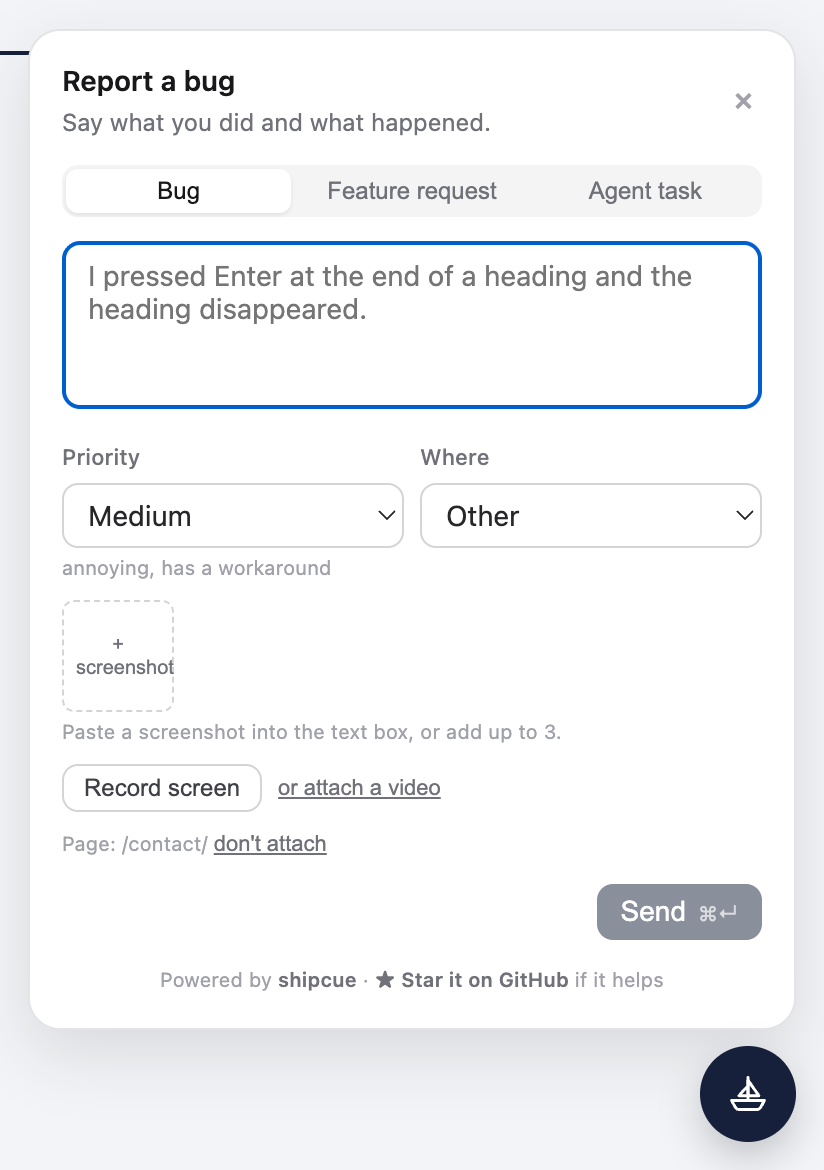
/>variant="inline"puts a small button in your header, which works better on phones where a floating bubble covers the controls.submit={(form) => action(form)}sends through a Next.js server action instead offetch.diagnosticsis a snapshot for whoever fixes the report. Keep it under 64 KB. If it throws, the report still goes through.- The panel has three tabs: Bug, Feature request and Agent task. An agent task is a direct instruction for an agent, and its prompt tells the agent the text came from whoever filed it. On a public page you may want
types={['bug', 'feature']}. - A small "Powered by shipcue · Star it on GitHub" line sits at the bottom of the panel. If shipcue helps you, a star really helps us;
watermark={false}turns it off. - Recent page errors are added to the snapshot as
recentErrors. Turn this off withcaptureErrors={false}. uploadVideouploads a recording or video yourself; without it the button posts it to the handler.pastReportsHrefadds a Past reports link to the panel.- The panel shows the page it will attach, with a "don't attach" link.
Keyboard shortcuts
The panel opens from the keyboard on any page, on the tab you ask for. Whatever is highlighted on the page comes along in an editable Context box (remove it with one click), so you can select a paragraph and turn it into an agent task in one go. When nothing is highlighted, getContext={() => selectedRowsAsText()} lets your app supply what is selected, like rows or blocks. Agents see it as its own Context section in the task prompt.
- Agent task:
⌘Jon a Mac,Alt+Shift+Jelsewhere - Bug:
⌃Bon a Mac,Alt+Shift+Belsewhere - Feature request:
⌃Fon a Mac,Alt+Shift+Felsewhere - Send:
⌘↵orCtrl+↵on every tab (never mid-composition in an input method). Close:Esc
On Windows and Linux, Ctrl+J, Ctrl+B and Ctrl+F already belong to the browser and to editors, so shipcue stays off them. Pick your own with hotkeys ("Mod" is ⌘ on a Mac and Ctrl elsewhere), or pass hotkeys={false} to turn them off:
<ReportButton hotkeys={{ task: ['Mod+J'], bug: ['Mod+Shift+B'], feature: [] }} />To open the panel from your own menu or command palette, call openReport('task') from shipcue/react.
Your own tabs
Apps that already have their own flow, like an agent-task composer backed by their API, can put it in the same panel as a tab of its own. It gets the draft so far and a close function, and a hotkey or openReport(id) opens it:
<ReportButton
  types={['bug', 'feature']}
  hotkeys={{ agent: ['Mod+J'] }}
  extraTabs={[{
    id: 'agent',
    label: 'Agent task',
    title: 'New agent task',
    render: ({ text, context, close }) => <TaskComposer draft={text} context={context} onDone={close} />,
  }]}
  onOpenChange={(open) => setPanelOpen(open)}
/>
closeReport() closes the panel from anywhere. Already have a help or support button? Pass trigger={false} so shipcue draws no button of its own, and call openReport('bug') from your menu.
Only for testers? Pass showParam="shipcue" and shipcue stays off (no button, no hotkeys) until someone opens the page with ?shipcue=true. It is remembered for that tab; ?shipcue=false turns it off again.
4. Connect an agent
claude mcp add shipcue \
  -e SHIPCUE_URL=https://your.app/api/shipcue \
  -e SHIPCUE_TOKEN=... \
  -- npx shipcue-mcp
The agent gets six tools: list_reports, claim_next_report, get_report, claim_report, release_report and close_report. A claimed report arrives as a task prompt with the description, page, screenshots, app snapshot and what to do next: reproduce, write a failing test, fix, close with the PR link.
5. Show the queue and a changelog
Let people see what is waiting and what got fixed. Switch the board on in the handler, then drop the component on any page:
createShipcueHandler({ ..., board: true })   // or (req) => isSignedIn(req)

import { ShipcueBoard } from 'shipcue/react';
<ShipcueBoard endpoint="/api/shipcue" />        // or <ShipcueQueue />, <ShipcueChangelog />
The board lists open and in-progress reports, most urgent first, and every fixed report with the resolution it was closed with, latest first. It never shows who filed a report, the page it came from, diagnostics or attachments. Close reports with a one-line, user-facing resolution and the changelog writes itself. See it on shipcue's own changelog.
HTTP API
Everything except filing a report needs Authorization: Bearer $SHIPCUE_TOKEN. Leave agentToken unset to switch the agent API off.
POST /reports                 file a report (multipart form, from the button)
GET  /reports?status=open     the queue, most urgent first
GET  /reports/:id             one report plus its task prompt
POST /reports/next/claim      take the most urgent open report (204 when empty)
POST /reports/:id/claim       take a specific report (409 if someone has it)
POST /reports/:id/release     give it back to the queue
POST /reports/:id/close       { "status": "fixed" | "wontfix", "resolution": "PR link" }
GET  /board                   no token: the queue and the changelog (only with board on)
What a report holds
- Type: bug, feature request or agent task
- Priority: low, medium, high or blocking
- Area: the parts of your app you list, plus Other
- Description, 10 to 4,000 characters
- Up to 3 screenshots, 5 MB each, shrunk in the browser first
- Context: text picked out on the page, up to 20,000 characters
- Page address, browser and your app snapshot
- Status: open, claimed, fixed or won't fix, with who claimed it and the resolution